
Help Centre › Connect your accounts
Connect WhatsApp
Connect your WhatsApp business number through the official Meta window.
First, choose your number
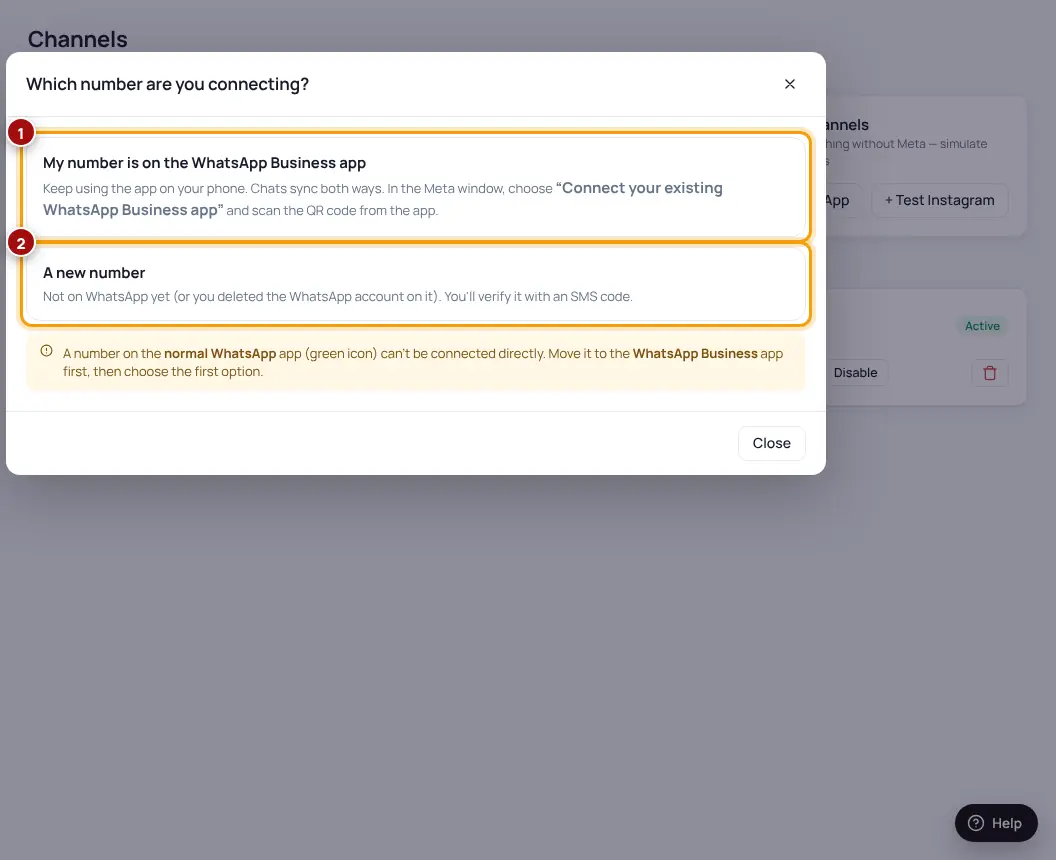
My number is on the WhatsApp Business app
Keep using the app on your phone — chats sync both ways. In the Meta window choose “Connect your existing WhatsApp Business app” and scan the QR code from the app (⋮ → Linked devices).
A new number
A number that is not on WhatsApp yet. You verify it with an SMS code.
A number on the normal WhatsApp app (green icon) can’t be connected. Move it to the WhatsApp Business app first, or use another number.
Connect
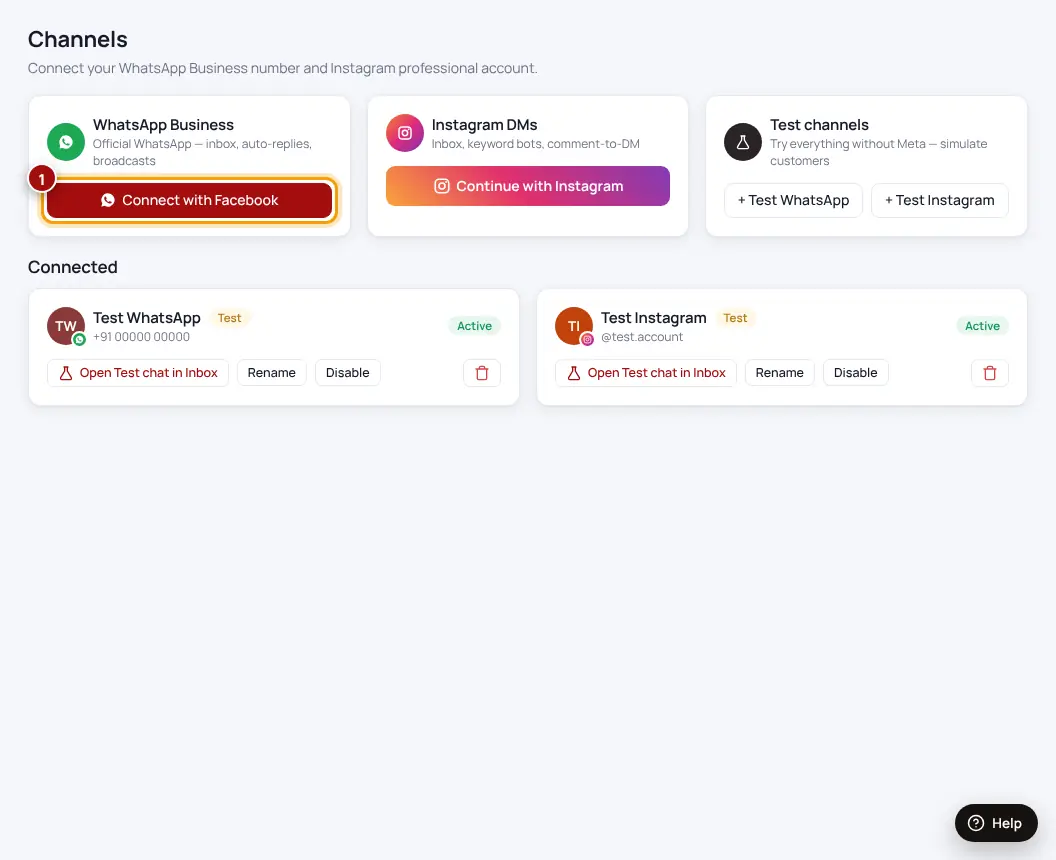
- Open Channels → “Connect with Facebook”Allow pop-ups for this site if nothing opens.
- Tell us which kind of number it isChoose one of the two options above.
- Log in with FacebookUse the Facebook account that manages your business.
- Choose or create your businessBusiness name, website and country — it’s free.
- Add your WhatsApp profile and numberDisplay name = your real business name. Verify the number with the SMS code, or scan the QR code for the app option.
- Click FinishYou come back to Spidery Connect and see “WhatsApp connected”.
- Two last thingsAdd a payment method in Meta (see the guide below) and send “hi” to your number from another phone to test.
| Message | What it means |
|---|---|
| “This phone number is not eligible to register or migrate” | The number is on a WhatsApp app — use the WhatsApp Business app option, or another number |
| “Sign-up was not completed” | The Meta window was closed early — click Connect with Facebook again |
| OTP doesn’t arrive | Wait a minute and choose “Phone call” instead of SMS |
| “Display name pending” | Meta reviews the name within a day — messages still work |
Was this helpful?Thanks! Need more help? Ask the help assistant