
Help Centre › Connect your accounts
Add a payment method in Meta for WhatsApp
Meta charges WhatsApp template messages to your own card. Here is how to add it.
You pay Spidery
Spidery wallet
Small Spidery fee per WhatsApp template message. Top up in Spidery Connect.
You pay Meta
Meta charge
Meta’s own charge per template message, billed to your card in Meta Business.
Nobody charges
Free
Replies within 24 hours, auto-replies, chatbots and all of Instagram.
You need admin access to your business in Meta, and a debit/credit card with online and international payments switched on (check this in your bank app — it is often off for Indian cards).
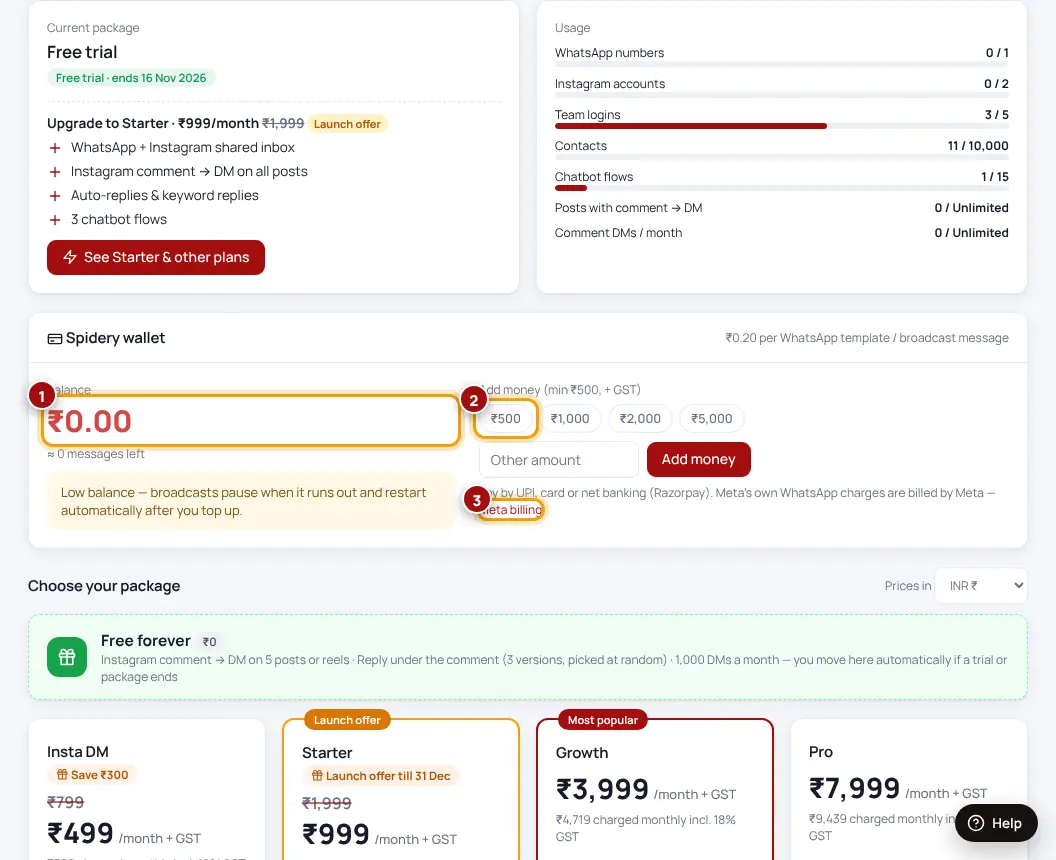
- Open Meta billingIn Spidery Connect: Plans & billing → Spidery wallet → “Meta billing” → “Open Meta billing ↗”. Or go to business.facebook.com → ☰ → Billing & payments.
- Pick your WhatsApp accountIn the account drop-down at the top, choose your WhatsApp Business account — not your ad account.
- Payment methods → Add payment methodEnter the card and approve the OTP / e-mandate from your bank. If you see “Add funds” (UPI or net banking), you can prepay instead.
- Add your GST detailsBusiness info → business name, address and GSTIN, so Meta’s invoices show your GST.
- Check it workedIn WhatsApp Manager the “Add a payment method” warning is gone, and broadcasts send without a payment error.
Meta charges only template messages (broadcasts, follow-ups, reminders). Replies within 24 hours of the customer’s last message are free.
Was this helpful?Thanks! Need more help? Ask the help assistant
Next: Try everything with a test channel →